

Android TV guide
Install SpiderVPN on Android TV or Google TV
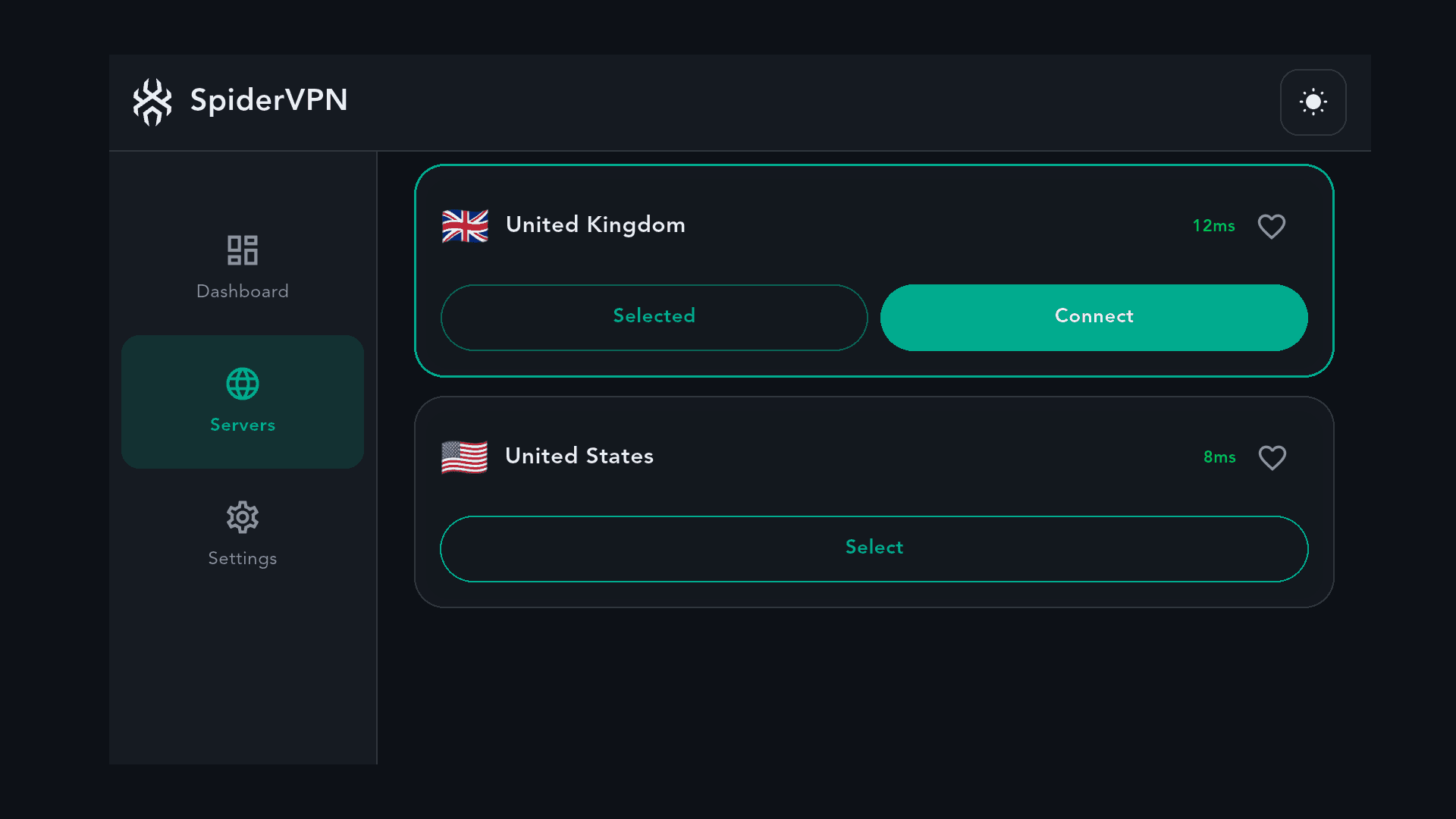
Use this if your Android TV or Google TV device can't install SpiderVPN from Google Play. If you can use Google Play, install it there: that version updates itself. Otherwise, download SpiderVPN from our downloads page, sign in with your phone, then choose a location and connect.
Before you start
- You need an Android TV or Google TV device with Android 7.0 or later.
- You need a SpiderVPN account. If you don't have one, sign up on our website or in the SpiderVPN app on your phone. Buying a plan inside the TV app needs Google Play; a plan you already have works as soon as you sign in.
Steps
01
Install Downloader
On the TV, install the Downloader app by AFTVnews from Google Play.
02
Allow Downloader to install apps
On Android TV, go to Settings > Apps > Security & Restrictions > Unknown sources and turn on Downloader. On Google TV, skip this step; see step 4.
03
Download SpiderVPN
Open Downloader, enter this address, select Go and wait for the download:
packages.spidervpn.org/android/latest.apkThis downloads SpiderVPN 1.7.7. Only use the address shown on spidervpn.org/downloads. Its SHA-256 checksum is on the downloads page.
04
Install it
Select Install. On Google TV, if the TV says it can't install apps from this source, select Settings, turn on Allow from this source, go back and select Install again. If you don't see that option, go to Settings > System > About, select Android TV OS build 7 times, then try again.
05
Open SpiderVPN
When the installation finishes, select Open.
06
Sign in with your phone
SpiderVPN shows a code and a QR code. Scan the QR code with your phone, or go to spidervpn.org/tv on your phone and enter the code. The TV signs in by itself.
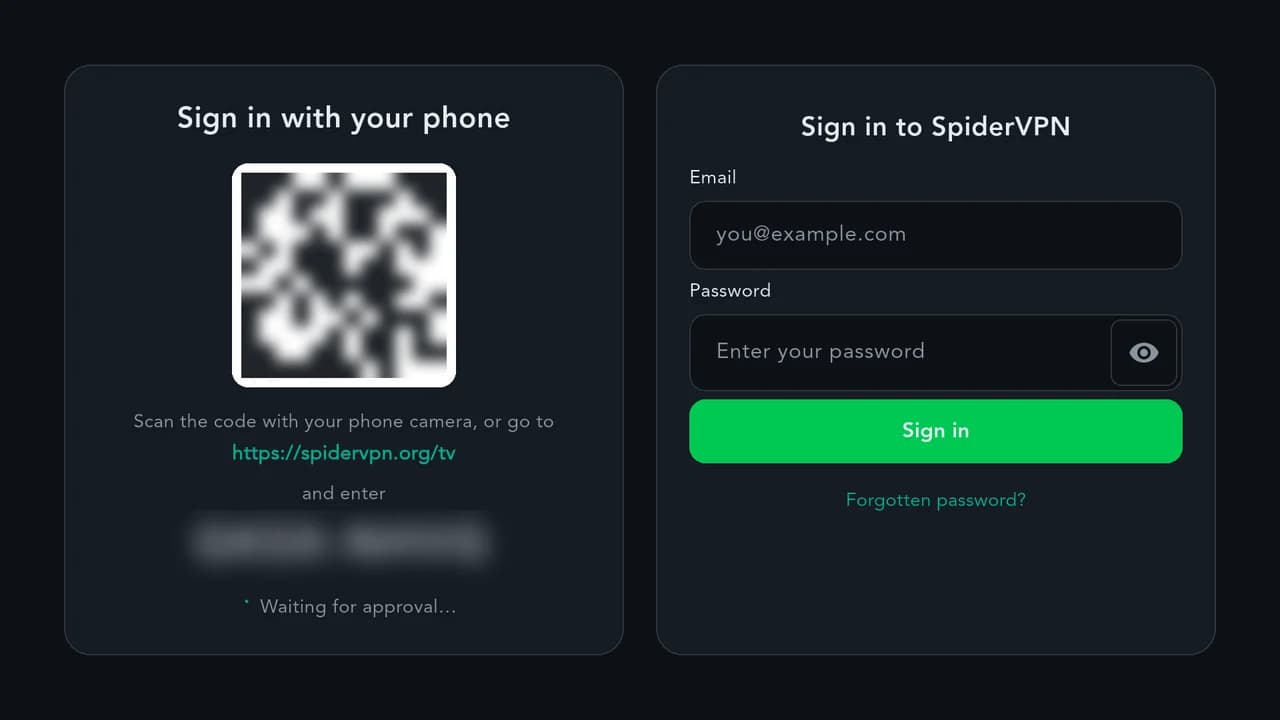
The sign-in screen in the SpiderVPN TV app. The code is blurred in this picture. 07
Connect
Choose a location and connect. The first time, allow the VPN connection when the TV asks.
Good to know
- This copy doesn't update itself. When the downloads page shows a newer version, repeat steps 3 to 5; you stay signed in and keep your settings.
- SpiderVPN reconnects by itself when the TV restarts (Connect on start-up is on by default on TVs). On Google TV you can turn it off in SpiderVPN's Settings.
- After installing, you can turn off Downloader's permission to install apps again (Unknown sources on Android TV, Allow from this source on Google TV).
- The download's SHA-256 checksum is shown next to it on the downloads page.
- If your TV has no Play Store, copy the file from the downloads page to a USB drive on your computer and open it with your TV's file manager.
- If you use a computer with ADB, you can run
adb installon the downloaded file instead. - On a Fire TV, get SpiderVPN from the Amazon Appstore instead: see the Fire TV guide.
Need help?
Our support team helps with your account, the app and sign-in.
Apple, iPhone, iPad, Mac and Apple TV are trademarks of Apple Inc., registered in the U.S. and other countries and regions. App Store is a service mark of Apple Inc. Amazon, Amazon Appstore, Fire TV and all related marks are trademarks of Amazon.com, Inc. or its affiliates. Android, Google Play and Android TV are trademarks of Google LLC. Windows is a trademark of the Microsoft group of companies. Linux is the registered trademark of Linus Torvalds in the U.S. and other countries. OpenWrt is a registered trademark of Software Freedom Conservancy. SpiderVPN is not affiliated with or endorsed by the OpenWrt project.